Getting Started
Go from signup to your first AI-powered skill in about 5 minutes. This guide walks you through every step, no prior experience required.
Six steps from install to shipped
- 1
Install Enterprise Skills
One command in your terminal. The details, including installing Node.js if you have never used it, are in the steps below.
- 2
Connect your coding tool
Cursor, Claude Code, VS Code with Copilot, Windsurf, JetBrains, and more. The install renders each tool's native format.
- 3
Build normally
Tell your AI what to build, in your own words. There are no new commands to learn at this step.
- 4
Enterprise Skills reviews the work
Every change gets the review a senior engineer would give it. Each finding arrives in plain language, with the fix to apply.
No rate limiting on login attempts
- 5
Fix and verify
Apply the fix, and the same check runs again to confirm it passed.
PASS
- 6
Ship
When the checks pass, you ship with a record of what was reviewed.
What is Enterprise Skills?
Enterprise Skills is a collection of AI-powered agent skills that work inside your code editor. Instead of writing prompts from scratch every time, you type short commands like code review and the AI follows a battle-tested, multi-step process that produces professional-grade results.
Think of each skill as a reusable expert playbook : built from real engineering workflows, not generic chat prompts. They work in Cursor, VS Code with Copilot, Windsurf, JetBrains, and other AI-enabled editors.
1Install Node.js
Already have Node.js? Open a terminal and run node --version. If you see a version number (like v20.18.1), skip to Step 2.
What is Node.js and why do I need it?
Node.js is a free tool that lets you run programs written in JavaScript on your computer. Enterprise Skills uses a small command-line tool (called the CLI) to activate your license and sync skills to your editor. Node.js is what powers that tool.
Think of it like installing a runtime: similar to how you might install Java or Python. You only need to do this once, and it takes about 2 minutes.
How to install
1. Go to nodejs.org
2. Click the big green LTS button (LTS means "Long Term Support": it's the stable version)
3. Run the downloaded installer: click "Next" through all the steps (defaults are fine)
4. When it finishes, open PowerShell (press the Windows key, type "PowerShell", click it)
5. Verify it worked:
node --version1. Go to nodejs.org
2. Click the LTS button and run the installer
3. Or, if you use Homebrew:
brew install node4. Open Terminal (press Cmd+Space, type "Terminal", press Enter) and verify:
node --versioncurl -fsSL https://deb.nodesource.com/setup_lts.x | sudo -E bash - && sudo apt-get install -y nodejsOr use your distribution's package manager. Verify:
node --version2Install the Enterprise Skills CLI
The CLI (command-line interface) is the tool that activates your license and installs skills into your editor. Open a terminal and run:
Copy and paste this into your terminal
npm install -g enterprise-skillsWhat is a terminal? A terminal is a text-based window where you can type commands. On Windows, it's called PowerShell (press the Windows key, type "PowerShell"). On Mac, it's called Terminal (press Cmd+Space, type "Terminal"). Most code editors also have a built-in terminal: in Cursor or VS Code, press Ctrl+` (backtick key, next to the 1 key).
The -g flag means "global": it installs the tool so you can use it from anywhere, not just one project. You should see a success message when it finishes.
Verify the installation:
enterprise-skills --version3Activate your license
After purchasing, you received a license key by email (and on the checkout success page). It looks like es-pro-xxxxxxxx-xxxx-xxxx-xxxx-xxxxxxxxxxxx.
Run this command, replacing the placeholder with your actual key:
Copy and paste: replace YOUR_LICENSE_KEY with your actual key
enterprise-skills license activate YOUR_LICENSE_KEYYou should see a confirmation message with your tier and the number of skills activated. Your license is now stored locally and will be validated periodically. You can work offline for up to 7 days before needing to reconnect.
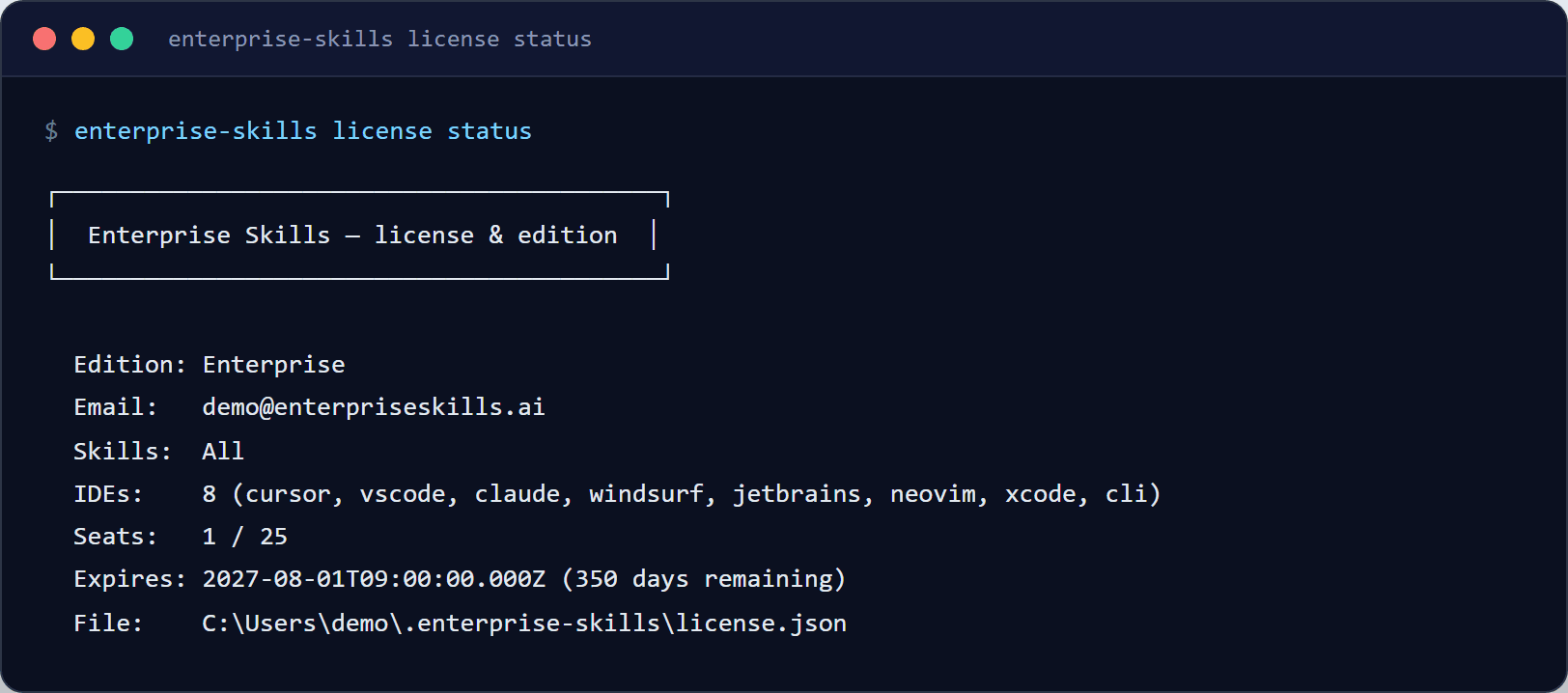
Lost your key? Check the email from noreply@enterpriseskills.ai with the subject "Your Enterprise Skills License Key". If you can't find it, contact support@enterpriseskills.ai.
4Set up your IDE
Enterprise Skills works inside AI-powered code editors. Pick the one you use (or want to try) and follow the setup instructions below.
CCursorRecommended
Cursor has built-in AI that reads your skills automatically. No extra plugins needed.
1. Download Cursor from cursor.com (free plan available)
2. Open any project folder in Cursor
3. Open the AI chat panel (Cmd+L on Mac, Ctrl+L on Windows)
4. Type your first command:
session startCursor will automatically discover and load your installed skills.
Available on: Community, Pro, Team, Enterprise tiers
VSVS Code + GitHub Copilot
VS Code works with Enterprise Skills through GitHub Copilot's agent mode.
1. Install GitHub Copilot extension in VS Code
2. Skills are loaded from ~/.cursor/skills/ : the same location Cursor uses
3. Open Copilot Chat and reference skills using @workspace context
Available on: Pro, Team, Enterprise tiers
WWindsurf
Windsurf reads skills through its rules system.
1. Skills are synced to Windsurf's rules directory automatically
2. Open the Windsurf AI panel and type any skill command
Available on: Team, Enterprise tiers
JBJetBrains (IntelliJ, WebStorm, etc.)
JetBrains IDEs work with Enterprise Skills through Junie (JetBrains AI) guidelines.
1. Enable Junie in your JetBrains IDE
2. Skills are loaded through the guidelines system
Available on: Team, Enterprise tiers
ClClaude (Anthropic)
Use Enterprise Skills with Claude Code or Claude's project context.
1. Skills are formatted as CLAUDE.md instructions
2. Reference them in Claude's project knowledge or attach directly
Available on: Pro, Team, Enterprise tiers
5Try your first skills
Open your AI chat in your editor and type any of these commands. Each one triggers a multi-step process that the AI follows automatically.
Start here (all tiers)
session startLoad project context, check state, and prepare your workspace. Always run this first.
code reviewEnterprise-grade review of your recent changes: catches bugs, security issues, and anti-patterns.
bug-hunterGive it a bug report or symptom. It reproduces, diagnoses, fixes, and verifies automatically.
build featureDescribe a feature. It plans the architecture, scaffolds files, implements, and tests.
Pro and above
security auditScans for auth gaps, hardcoded secrets, XSS, CSRF, exposed routes, and missing encryption.
full-stack auditRuns all audit skills in sequence: security, API contracts, dependencies, and pre-deploy checks.
db migrationTakes a schema change request, generates the migration, updates types and routes, and tests.
refactorTakes a refactoring goal, analyzes impact across the codebase, plans changes, and executes safely.
performance auditFinds slow queries, bundle bloat, memory leaks, unnecessary re-renders, and N+1 problems.
generate api docsScans all API routes, extracts methods and auth requirements, generates OpenAPI or Markdown docs.
Team and above
bootstrap ai governanceApply model routing rules, change control, and drift protection across your org's projects.
pre-deploy checkFull deployment checklist: types, lint, tests, env vars, migrations, build, and git state.
issue triageScans open GitHub issues, categorizes by type and priority, assigns labels, and generates triage reports.
init project skillsDetects your project's stack and generates tailored skills locked to that specific technology.
6Run governed agentic workflows
Your IDE's AI does the work: the Enterprise Skills engine decides what runs, blocks what shouldn't, and records tamper-evident proof of everything. Three commands unlock the agentic layer.
Preflight: resolve the right skill for any task
Deterministic, file-backed resolution: classifies the task, scores all skills with a fixed weighting, checks model routing, and gates duplicate skill creation. Same input, same answer, every time.
enterprise-skills preflight "fix the auth timeout before we ship"Workflows: multi-skill pipelines with evidence gates
Start a DAG of audits, reviews, and checks. Gates evaluate recorded evidence on disk: a failing security gate stops the pipeline and cannot be talked around. Add --yes with an agent command to run fully headless.
enterprise-skills orchestrate workflow start release-readinessCompliance: evidence-backed control mapping
Detects which governance controls are actually deployed (it verifies the audit log's hash chain, not just file presence) and maps them to SOC 2, HIPAA, GDPR, ISO 27001, PCI DSS, and FedRAMP with honest coverage math.
enterprise-skills compliance reportUpdates that prove themselves before they reach you
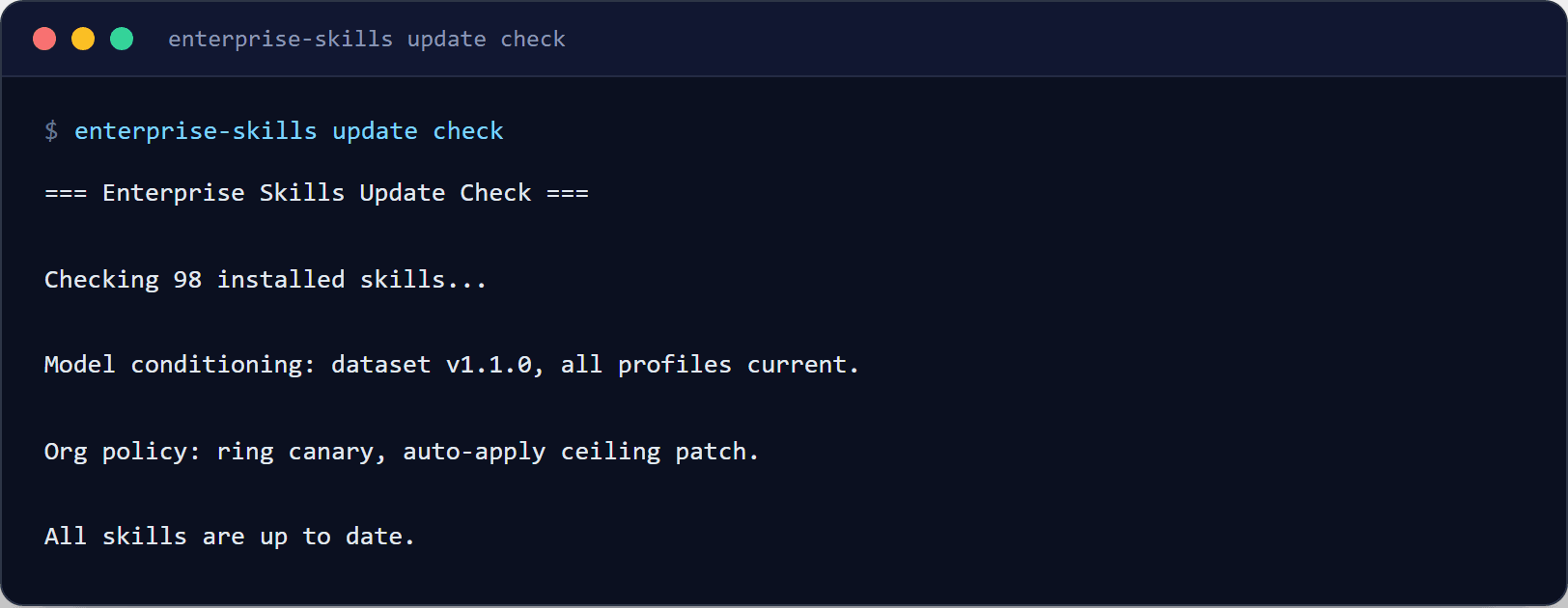
Your installed skills stay current with one command. New skill versions soak on the canary ring and must stay healthy before general availability, and your organization's policy decides which ring you ride and what may apply automatically.
Gate your merges on evidence
Install the Enterprise Skills Release Governor GitHub App and add one CI step: every pull request gets a deterministic, commit-bound PASS/FAIL check driven by the change's actual risk, and your own coding agent can produce the required evidence automatically in CI.
Setting up your team
Team and Enterprise tiers only
If you purchased a Team plan, each team member needs their own setup:
- Share the license key with each team member (or purchase additional seats)
- Each member installs Node.js and the CLI on their machine (Steps 1-3 above)
- Each member activates with the same license key
- All 8 IDE adapters are available: team members can use whichever editor they prefer
Team plans include cross-project intelligence (governed skill refinements made in one project carry over to others) and mandatory model handoff governance (ensuring AI follows team standards consistently).
Frequently asked questions
I get 'npm: command not found' when I try to install
I get a permission error when running npm install -g
The activate command says 'invalid key'
I can't find my license key
Do I need to be online to use skills?
Can I use skills in multiple editors at once?
What's the difference between Community and Pro?
How do I update to the latest skills?
Still need help?
We're here for you. Reach out and we'll get you up and running.